LookMatch Support
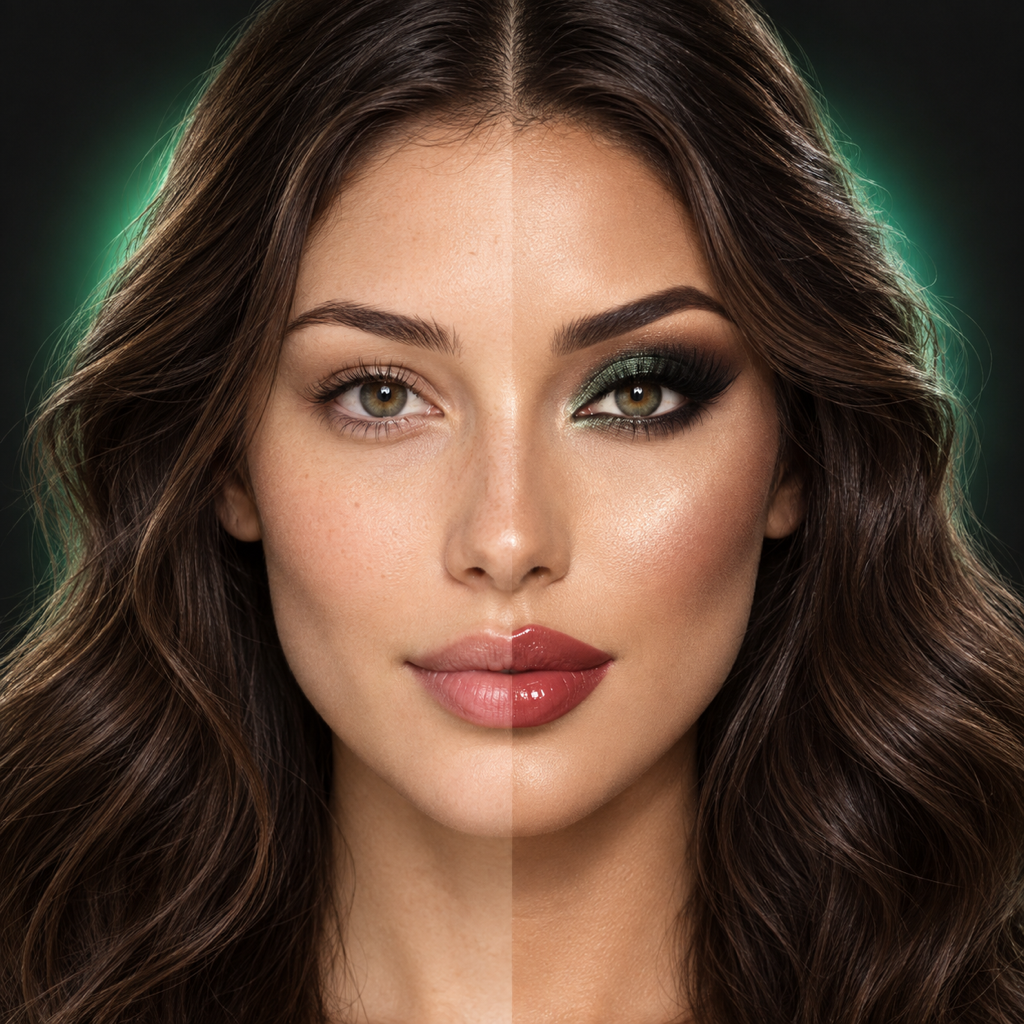
LookMatch helps you recreate makeup, hair, brows, cosplay, and grooming looks by comparing a reference photo with your live camera.
GETTING STARTED
1. Tap Reference and choose an inspiration photo from Photos.
2. Position yourself in front of the camera.
3. Tap Smart Align to automatically match the face size, position, and angle.
4. Use the Reference and You zoom controls for additional adjustment.
5. Drag the reference image to position it precisely.
6. Switch between Split and Overlay to compare individual features.
7. Use Freeze when you want to inspect the current camera frame.
8. Tap Save to export a comparison image to Photos.
SMART ALIGN
Smart Align uses on-device facial landmark detection to locate the eyes in the reference photo and live camera image. It then adjusts the reference image’s size, position, and angle.
Smart Align works best when:
• Both faces are clearly visible.
• The eyes are unobstructed.
• Lighting is even.
• The reference face is reasonably front-facing.
• Only one prominent face appears in each image.
Smart Align provides a starting point. You can still drag and zoom the reference image afterward.
CAMERA AND PHOTO ACCESS
LookMatch requires Camera access to display your live image.
Photo access is used only when you choose a reference image or ask LookMatch to save a comparison. You can change these permissions at any time in your device’s Settings.
RECORDING
Where recording is available, LookMatch creates a silent video of the comparison canvas. The app does not access or record microphone audio. Recorded videos may include a LookMatch watermark.
TROUBLESHOOTING
The camera is blank:
• Confirm that Camera access is enabled for LookMatch.
• Close and reopen the app.
• Make sure another app is not currently using the camera.
Smart Align cannot find a face:
• Face the camera directly.
• Move into brighter, even lighting.
• Remove anything covering the eyes.
• Try a clearer reference photo.
The reference does not line up perfectly:
• Use the Reference zoom control.
• Drag the reference image to reposition it.
• Adjust the You zoom control to change the camera framing.
• Try Overlay mode and adjust the opacity.
A comparison did not save:
• Confirm that LookMatch is allowed to add items to Photos.
• Check that your device has available storage.
• Try saving again after reopening the app.
SUPPORTED DEVICES
LookMatch supports compatible iPhone, iPad, and Mac devices.
LookMatch also runs on iPhone Duo. Duo-specific layouts and display enhancements may vary depending on the installed LookMatch version and operating system version.
CONTACT
For support, bug reports, or feature requests:
Email: pixeldramacasting@gmail.com
When reporting a problem, please include your device model, operating system version, LookMatch version, and a brief description of what happened.